> ## Documentation Index
> Fetch the complete documentation index at: https://pentest-tools.com/docs/llms.txt
> Use this file to discover all available pages before exploring further.
# Sprinto integration
> Sync security findings to Sprinto for continuous control testing and audit readiness.
The Sprinto integration lets Sprinto automatically pull your findings into its vulnerability management, so they feed your compliance controls and stay audit-ready.
Available on NetSec, WebNetSec, and Pentest Suite plans.
## What is Sprinto?
Sprinto is a security and compliance automation platform that helps organizations achieve and maintain certifications such as SOC 2, ISO 27001, HIPAA, and GDPR by automating evidence collection and continuous control monitoring.
## Benefits
Findings automatically provide compliance evidence.
Keep your compliance posture up to date.
See security findings alongside your other compliance data in Sprinto.
Findings ready for auditor review.
## How the integration works
This integration is built and maintained by Sprinto. Unlike push-based integrations, Sprinto **pulls** your findings from Pentest-Tools.com using an API key that you generate in your account:
1. You generate a Pentest-Tools.com API key and paste it into Sprinto as a new monitoring source.
2. In Sprinto, you choose which workspaces to sync by entering their names.
3. Sprinto pulls the findings from those workspaces once a day and maps them to your compliance controls.
Because the sync is driven by Sprinto, all configuration of *what* is synced and *when* happens on the Sprinto side, using the API key you provide.
## Prerequisites
* A Pentest-Tools.com account on a paid plan.
* Access to your organization's Sprinto account with permission to add a monitoring source.
* The names of the Pentest-Tools.com workspaces you want to sync.
## Set up in Pentest-Tools.com
First, generate the API key that Sprinto will use to read your findings.
Go to **Settings > Integrations**, find the **Sprinto** card, and click **Configure**.
Enter a profile name (for example, `sprinto-sync`) and choose an expiration.
Sprinto syncs every day, so if the key expires the sync stops until you generate a new one. Consider setting a longer expiration period to avoid the sync stopping unexpectedly.
Copy the personal access token and store it somewhere safe. For security reasons, **you won't be able to see it again** after you close the dialog.
## Add the monitoring source in Sprinto
Next, add Pentest-Tools.com as a monitoring source in your Sprinto account.
Log in to Sprinto and go to the [vulnerabilities overview](https://app.sprinto.com/app/admin/vulnerabilities/overview).
Click on **Add monitoring source** button and scroll to **Pentest-Tools.com Ingestion Plan template**.
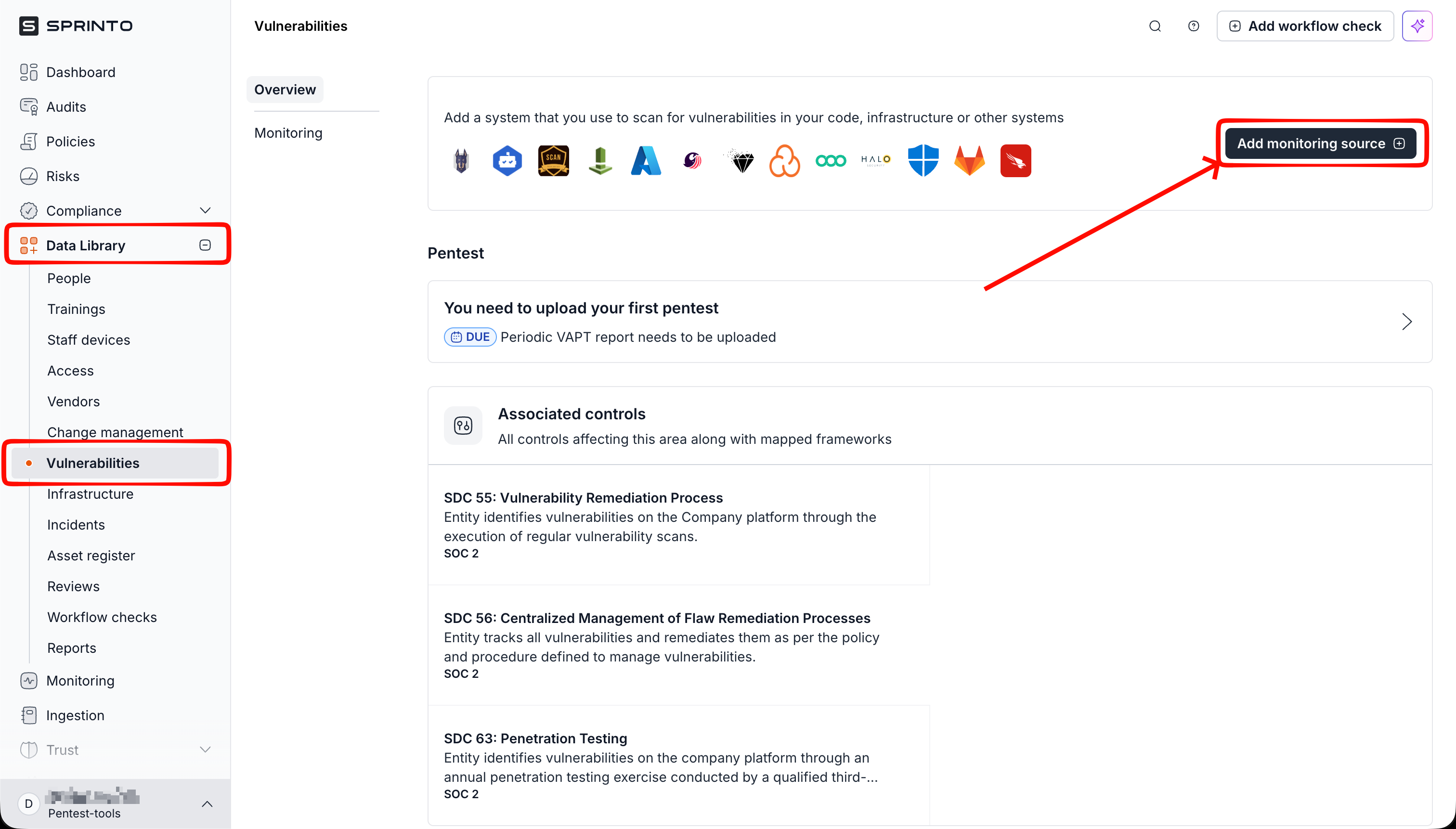
Click on **Use This Template** button. In the following step we will add the API token.
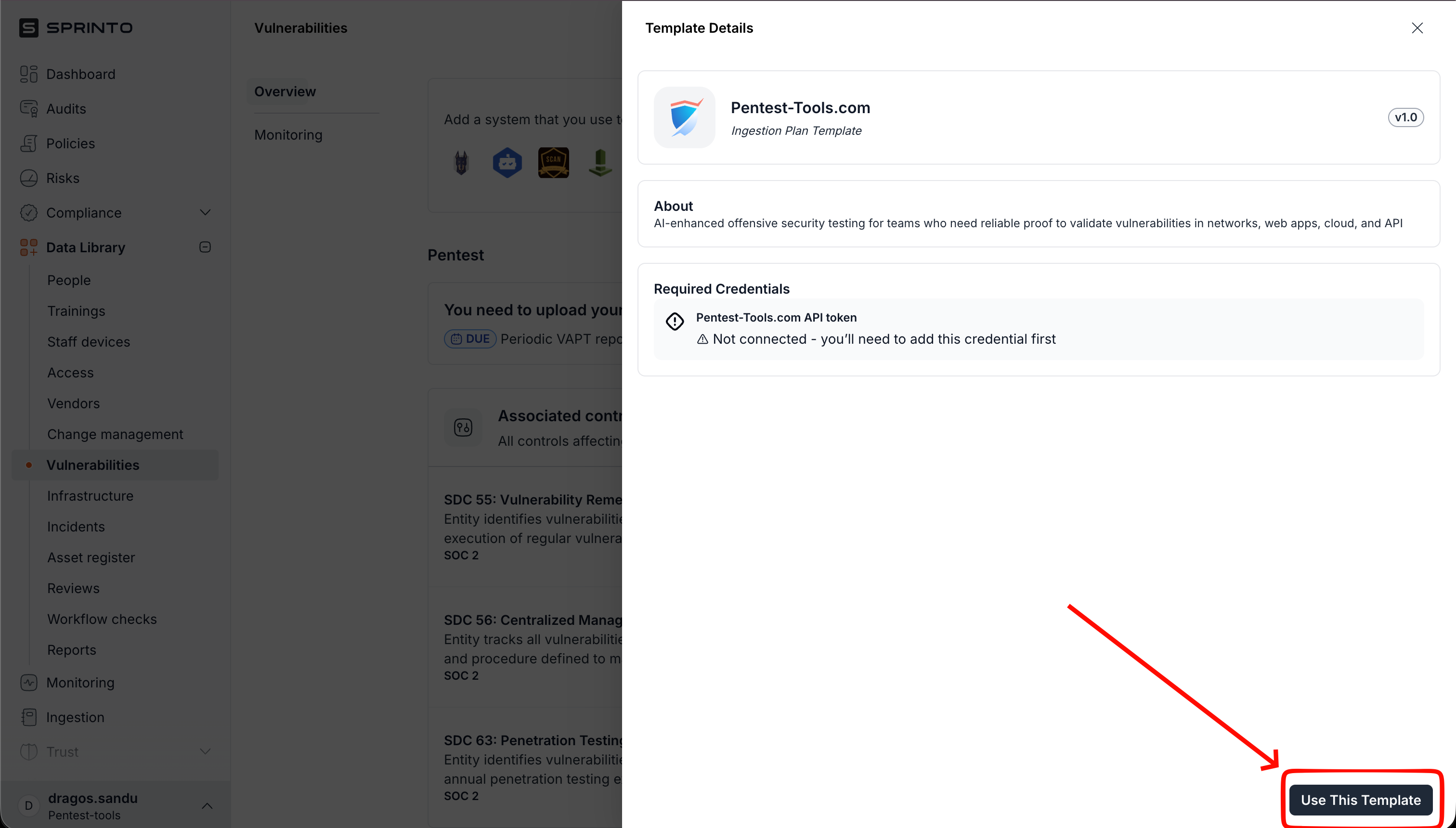
Open the newly created Ingestion plan and click on **Edit plan**.
Here, you can add your API token by clicking on **Attach Credential** button, then **Connect**, enter your API token and finally click on **Connect to Pentest-Tools.com API token**.
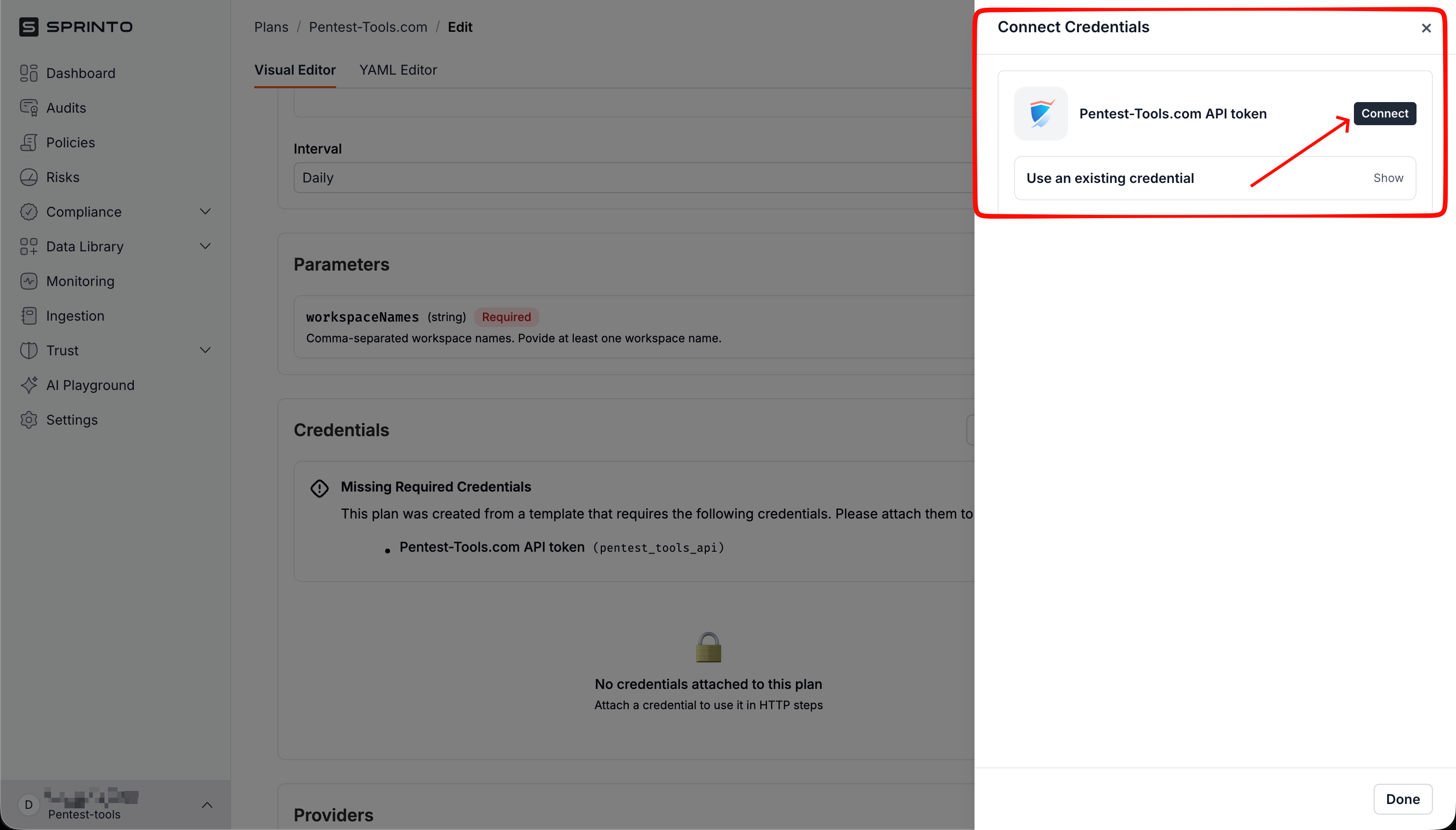
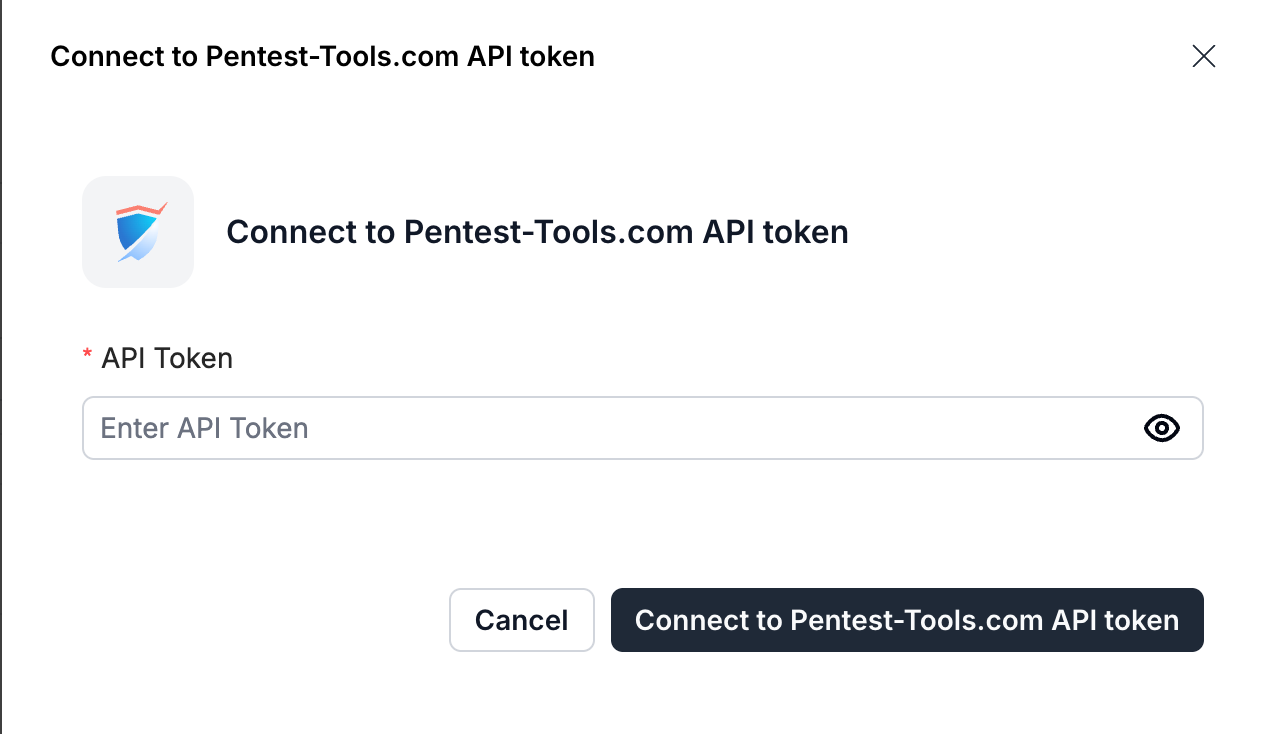
Enter the names of the workspaces you want to sync, separated by commas. Only findings from these workspaces are pulled into Sprinto, so make sure the names match your Pentest-Tools.com workspaces exactly.
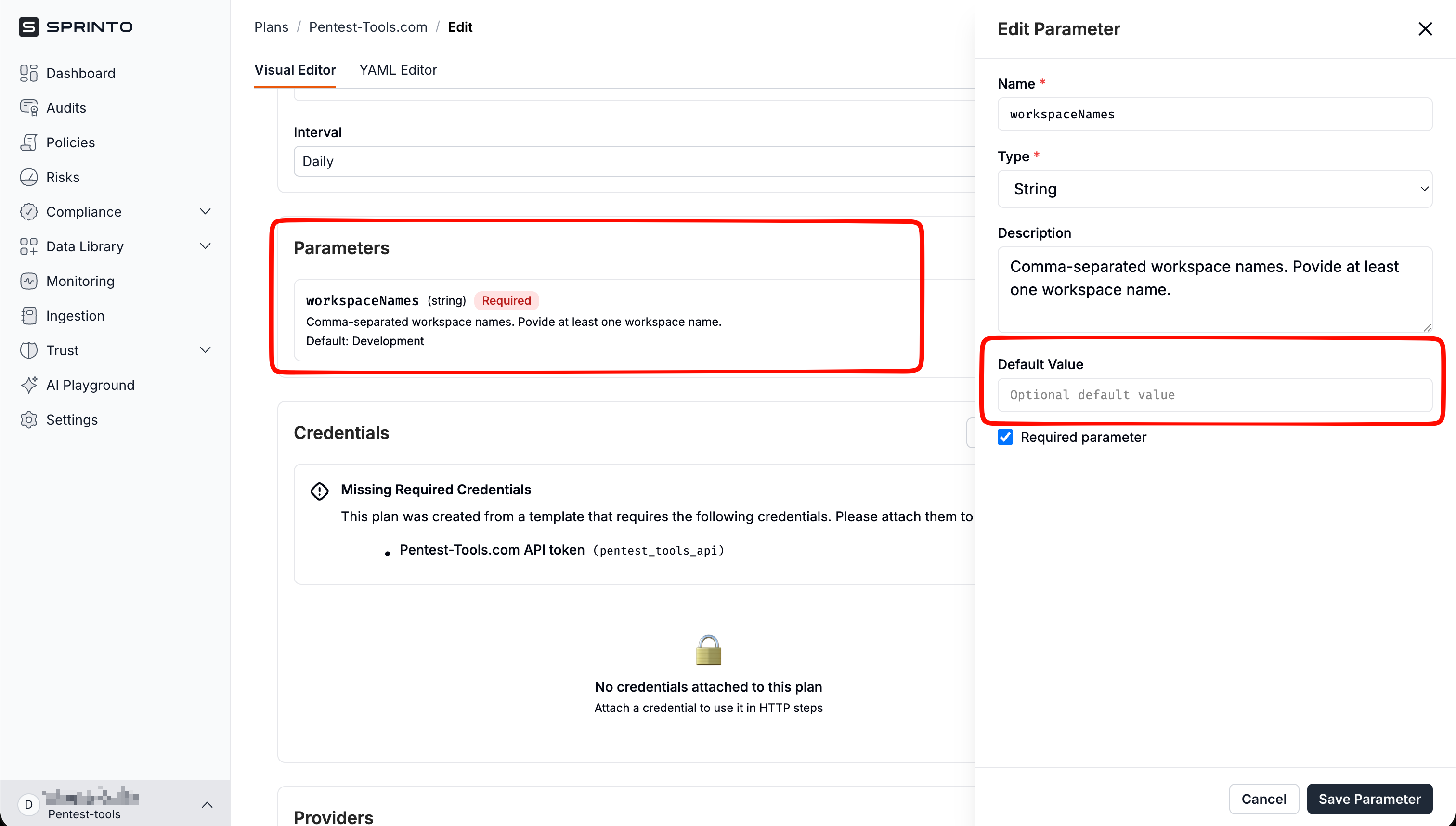
Save the configuration. Sprinto will start pulling findings on its next daily sync, or you can test it right away using the **Run** button.
## What gets synced
All findings from the selected workspaces, except Informational ones.
The sync runs **daily**. The exact time can vary, so a new finding can take up to a day to appear in Sprinto after a scan completes. You can manually trigger the data refresh anytime from your Sprinto account.
## Managing the API key
The connection relies entirely on the API key you generated:
* To rotate the key, generate a new API key in **Settings > Integrations > Sprinto** and update the monitoring source in Sprinto with the new value.
* To stop the sync, remove the monitoring source in Sprinto, then revoke the API key in Pentest-Tools.com so it can no longer be used.
If the API key expires or is revoked, Sprinto can no longer pull your findings and the sync stops. Generate a new key and update the monitoring source in Sprinto to resume.
## Troubleshooting
* Confirm the workspace names in Sprinto match your Pentest-Tools.com workspaces exactly (watch for typos or extra spaces).
* Remember that **Informational** findings are never synced.
* The sync runs once a day, so allow up to a day for new findings to appear.
* Check whether the API key has expired or been revoked in **Settings > Integrations > Sprinto**.
* Generate a new API key and update the monitoring source in Sprinto.
* Make sure every workspace you want to sync is listed in the comma-separated workspace names in Sprinto.
## Related topics
* [Vanta integration](/docs/capabilities/integrations/vanta)
* [Findings](/docs/core/findings/findings)
* [Workspaces](/docs/core/workspaces)